
Kando
一个跨平台饼状菜单工具——用 Fitts 定律和手势操作来加速桌面交互。开源免费,支持 Windows、macOS 和 Linux。

简要说明#
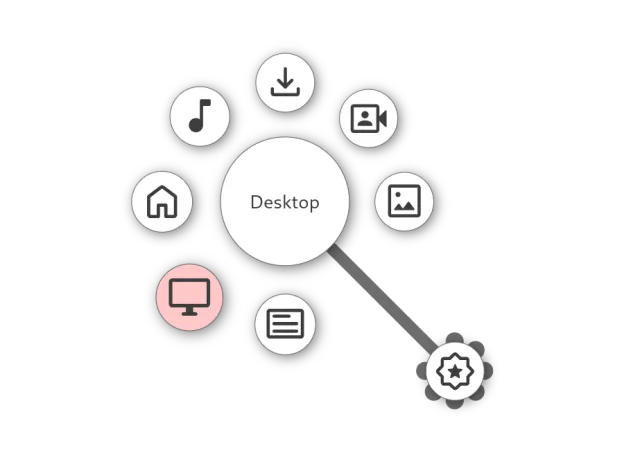
Kando 是一个跨平台饼状菜单(pie menu)工具。按下快捷键,屏幕中央弹出一个圆形菜单,往菜单项的方向甩一下鼠标或画一道折线,就能启动应用、执行快捷键、打开文件或运行脚本。设计上利用了 Fitts 定律——把目标区域放大、移动距离缩短,所以选择速度比传统菜单快。开源、MIT 协议、全平台可用。
开发背景#
Kando 由 Simon Schneegans 开发,他是 GNOME 上流行的饼状菜单扩展 Fly-Pie 的同一个作者。Fly-Pie 在 GNOME 用户里口碑很好,但毕竟只支持 GNOME 桌面。Kando 相当于把同样的交互理念移植到了 Electron 上,做到了真正的跨平台。项目 2023 年启动,到 2026 年已经有 6000 多个 Star,社区活跃度不错。
导航模式#
Kando 提供了四种操作模式,从基础到进阶,学习曲线比较平缓。
Point and Click — 基础模式。呼出菜单后直接点击菜单项,不需要精确瞄准,落在扇形区域内即可。这是入门最友好的方式。
Marking Mode(手势模式) — 按住鼠标左键不放,向目标方向拖拽,画折线通过菜单层级。熟练之后可以不看屏幕,用肌肉记忆来完成选择。官方建议画”夸张的折线”而不是”犹豫不决的曲线”。
Turbo Mode(极速模式) — 呼出菜单后不松开快捷键(如 Ctrl),直接移动鼠标,菜单会随鼠标方向自动进入对应子菜单,松键即确认。比 Marking Mode 少一次按下的动作。
Hover Mode — 不需要按键,菜单出现后鼠标悬停到目标位置自动选中。速度最快,但也最容易误触,需要在设置里手动开启。
四种模式可以混用,同一个菜单在不同场景下用不同方式操作。
菜单编辑器#
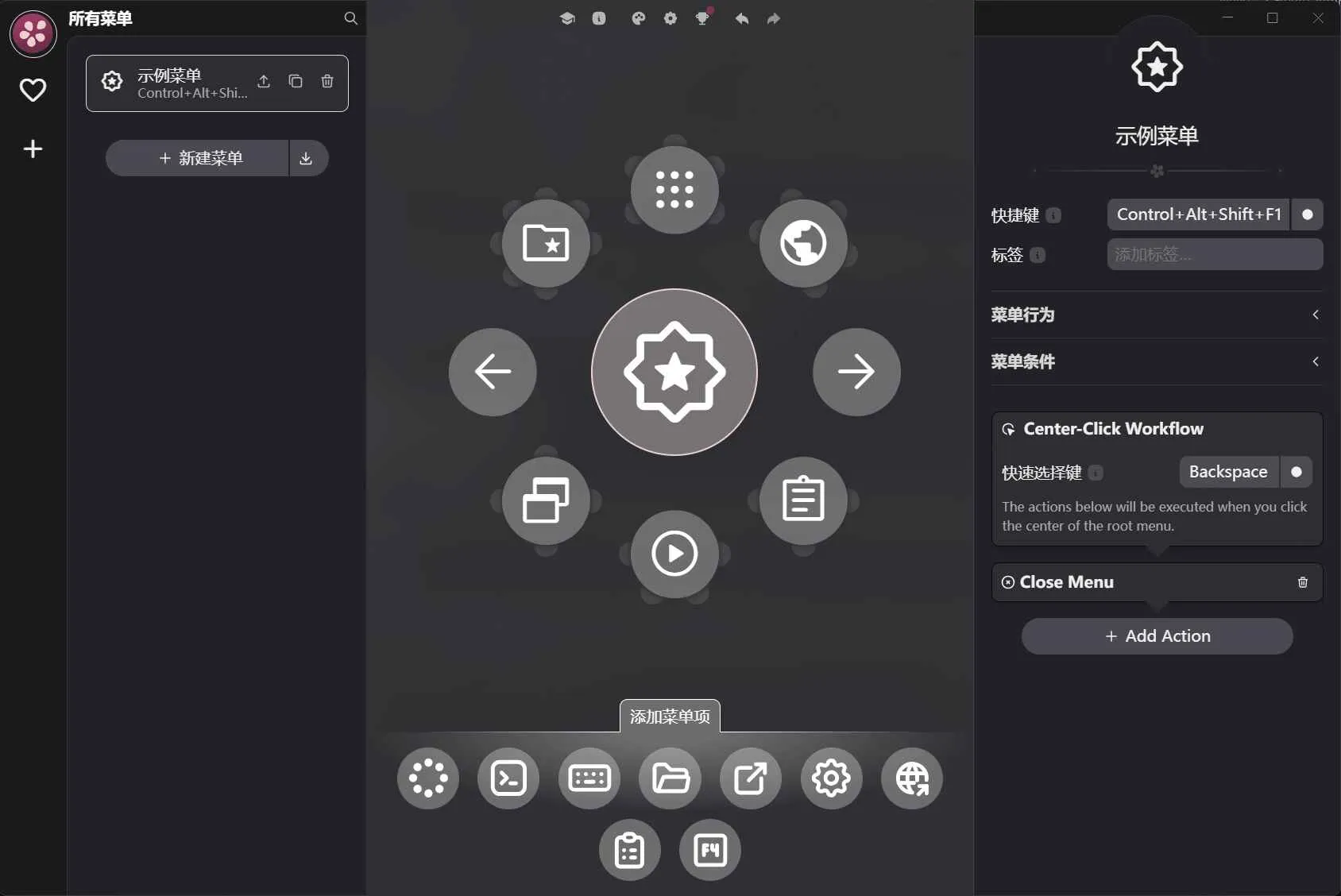
Kando 的菜单编辑器是项目的核心复杂度所在。它本身是一个 WYSIWYG 编辑器,在可视化界面里拖拽、添加、删减菜单项,不需要手写配置。
菜单项支持的类型:
- 启动应用 — 输入应用名或路径
- 模拟快捷键 — 执行一个热键组合
- 打开文件/目录/URL — 快速导航
- 粘贴文本 — 存放常用文本片段
- 运行脚本 — 执行 shell 命令
- 子菜单 — 支持无限嵌套
每个菜单可以绑定到不同的触发快捷键,也可以根据当前前台窗口自动切换上下文——比如在浏览器里按快捷键和在编辑器里按快捷键,弹出不同的菜单。
自定义与主题#
Kando 使用 CSS 来渲染菜单外观,主题自定义能力很强。自带几套默认主题(Clean Circle、Neon Lights、Rainbow Labels 等),社区也维护了一个主题仓库,有 Minecraft、Cyberpunk 等各种风格。
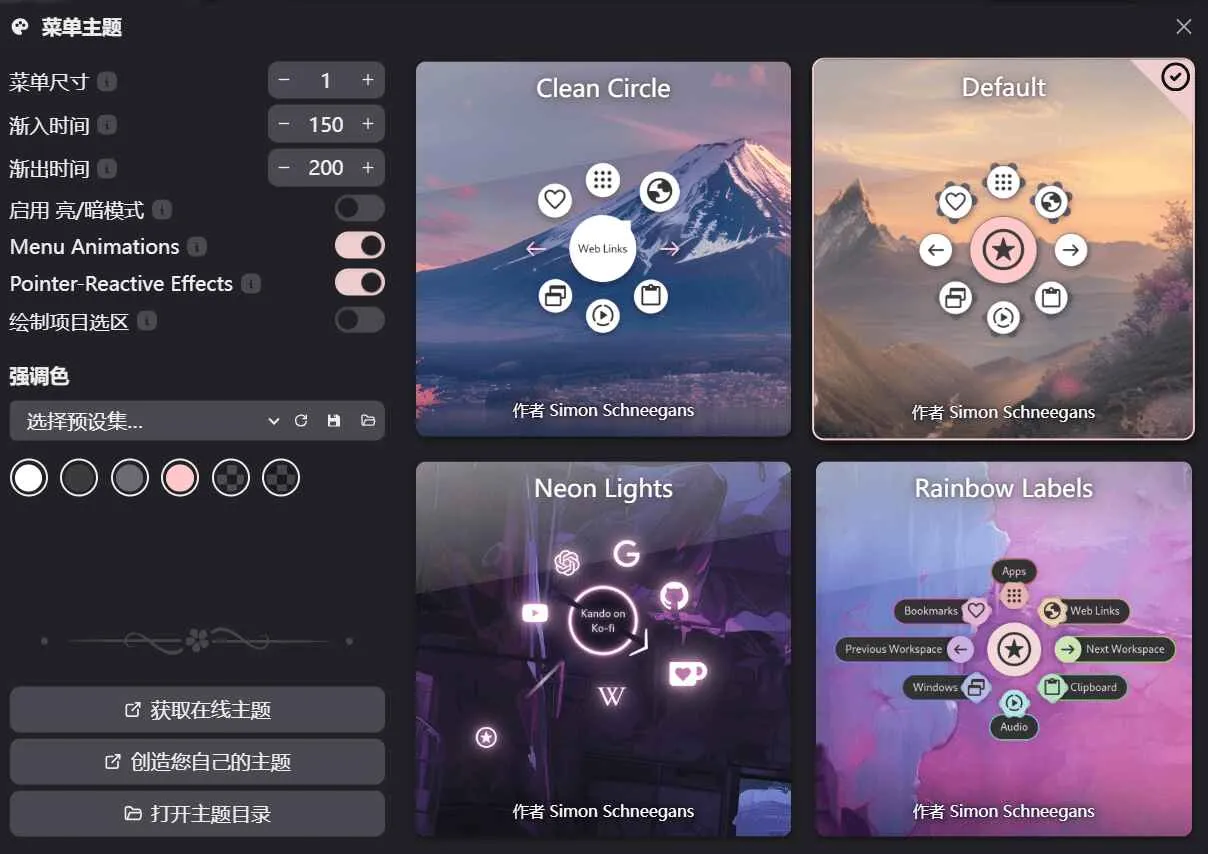
主题文件放在系统配置目录下,支持 light/dark 两套独立配色。
安装方式#
# Windows
winget install kando

# macOS
brew install kando

# Linux
flatpak install flathub menu.kando.Kando
Linux 下可以通过包管理器安装,也支持直接下载 AppImage。各桌面环境的兼容情况不同——GNOME 需要安装一个辅助扩展,KDE Plasma 5/6 和 Hyprland 原生支持,Xorg 环境基本都能跑。
用鼠标触发菜单#
Kando 默认只支持键盘快捷键呼出菜单,但大多数人希望在鼠标侧键上触发它。Kando 本身没有内置鼠标绑定功能,但可以通过第三方工具来实现。
推荐的做法有两种。
模拟快捷键:如果你的鼠标驱动支持把鼠标按键映射为键盘快捷键,这是最简单的方式。设置一个不会被其他程序占用的组合键(比如 Ctrl+F13),然后把鼠标侧键绑定到这个快捷键上。
以下是一个 AHK 脚本,将鼠标侧键绑定到组合键上,实现的效果是按住鼠标侧键后拖动鼠标,即触发 Kando 菜单弹出并进入菜单选择状态,一气呵成。
; --- Global Variables for Easy Modification ---
global sleepTime := 10 ; Sleep time in milliseconds for loop (adjust for CPU usage vs responsiveness)
global timeThresholdGlobal := 300 ; time threshold in milliseconds (adjust for sensitivity)
global triggerRadius := 20 ; Mouse movement trigger radius in pixels (adjust to your preference)
; --- Modifier Key Conversion ---
modifierSymbols := Map( ; DONT TOUCH THIS
"{Win}", "#",
"{Alt}", "!",
"{Ctrl}", "^",
"{Shift}", "+"
)
; --- Hotkey Definitions using the Modular Function ---
; --- Main things to modify ---
; Example 1: XButton1 triggers Ctrl+Alt+Shift+F18 - using global triggerRadius and timeThreshold - No modifiers for the base hotkey
ConditionalHotkey("", "XButton1", "{Ctrl down}{Alt down}{Shift down}{F18}") ; "" for no modifier keys
; Example 2: Ctrl + XButton1 triggers Ctrl+Alt+Shift+F17 - using global triggerRadius and timeThreshold
; ConditionalHotkey("{Ctrl}", "XButton1", "{Ctrl down}{Alt down}{Shift down}{F17}")
; Example 3: Shift + XButton1 triggers Ctrl+Alt+Shift+F16 - using global triggerRadius and timeThreshold, but overriding triggerRadius to 25px
; ConditionalHotkey("{Shift}", "XButton1", "{Ctrl down}{Alt down}{Shift down}{F16}", 25)
; Example 4: Alt + XButton1 triggers Ctrl+Alt+Shift+F15 - overriding both triggerRadius and timeThreshold
; ConditionalHotkey("{Alt}", "XButton1", "{Ctrl down}{Alt down}{Shift down}{F15}", 30, 400)
; Example 5: Ctrl + Shift + Alt + XButton1 triggers Ctrl+Alt+Shift+F14
; ConditionalHotkey("{Ctrl}{Shift}{Alt}", "XButton1", "{Ctrl down}{Alt down}{Shift down}{F14}")
;
;
;
; ------------ NO NEED TO TOUCH ANYTHING BELOW THIS LINE ------------
; --- ConditionalHotkey Function Definition ---
/*
Function: ConditionalHotkey
Creates a hotkey that performs an action based on mouse movement or time held, with optional modifier keys.
Parameters:
modifierKeys - (Optional) Modifier keys using AHK's modifier key syntax (e.g., "{Ctrl}{Alt}{Shift}", ""). Default: "".
triggerButton - The button to monitor (e.g., "XButton1", "LButton", "RButton").
hotkeyToSend - The hotkey combination to send when triggered (e.g., "{Ctrl down}{Alt down}{Shift down}{F18}").
distanceThreshold - (Optional) Mouse movement radius in pixels to trigger the action. Overrides global triggerRadius if provided. Default: global triggerRadius.
timeThreshold - (Optional) Time in milliseconds to trigger the action if mouse doesn't move enough. Overrides default timeThreshold if provided. Default: global sleepTime * 30.
Credits:
@SlayVict for the idea
@vfxturjo for modularization
Returns:
None
*/
ConditionalHotkey(modifierKeys, triggerButton, hotkeyToSend, distanceThreshold := -1, timeThreshold := -1) {
local distThreshold := (distanceThreshold == -1) ? triggerRadius : distanceThreshold ; Use global triggerRadius if distanceThreshold is not provided
local timeThresh := (timeThreshold == -1) ? timeThresholdGlobal : timeThreshold ; Use default timeThreshold (scaled sleepTime) if timeThreshold is not provided
local hotkeyName := "" ; Initialize hotkeyName
local remainingModifiers := modifierKeys ; Working string for modifier keys
; --- Convert modifier key strings to symbols ---
for keyString, symbol in modifierSymbols {
if (InStr(remainingModifiers, keyString)) {
hotkeyName .= symbol ; Append the symbol to hotkeyName
remainingModifiers := StrReplace(remainingModifiers, keyString) ; Remove the processed modifier string
}
}
hotkeyName .= triggerButton ; Append the base trigger button
; --- InnerHotkey Function Definition (now nested within ConditionalHotkey) ---
InnerHotkey(_) { ; Inner function to handle hotkey logic
MouseGetPos &startX, &startY ; Get initial mouse position when hotkey is pressed
startTime := A_TickCount ; Record the starting time
triggered := false ; Initialize triggered flag to false
while GetKeyState(triggerButton, "P") { ; Loop as long as the trigger button is physically held down (modifier state is handled by hotkey)
MouseGetPos ¤tX, ¤tY ; Get current mouse position in each loop iteration
distance := Sqrt((currentX - startX) ** 2 + (currentY - startY) ** 2) ; Calculate distance from starting position
timeSinceHotkey := A_TickCount - startTime ; Calculate time elapsed since hotkey press
if (distance > distThreshold || timeSinceHotkey > timeThresh) { ; Check trigger condition (distance OR time)
triggered := true ; Set triggered flag to true
MouseMove startX, startY, 0 ; Move mouse back to the starting position instantly (optional visual cue)
Send hotkeyToSend ; Send the specified hotkey combination
MouseMove currentX, currentY, 0 ; Move mouse back to the current position instantly
KeyWait triggerButton ; Wait for the trigger button to be released
Send "{Shift up}{Alt up}{Ctrl up}" ; Ensure modifier keys are released after sending hotkey - Removed this line, not needed and can cause issues
break ; Exit the while loop as action is triggered
}
Sleep sleepTime ; Pause for a short duration to reduce CPU usage (using global sleepTime)
}
if (!triggered) { ; If the loop finished without triggering the action (button released too quickly or mouse didn't move enough)
Send "{Blind}" . "{" . triggerButton . "}" ; Send the original button press (perform normal button action), also allow for modifier keys to be held down
}
return ; Exit InnerHotkey function
}
; --- End of InnerHotkey Function Definition ---
Hotkey hotkeyName, InnerHotkey ; Dynamically create hotkey with modifiers, linking to InnerHotkey function
}
调用 Kando CLI:Kando 提供了 --menu 和 --trigger 两个命令行参数,可以在第三方工具中直接调用。用 AutoHotkey 或 Input Remapper 配置鼠标侧键执行这条命令即可:
# Windows
%localappdata%\Kando\app-<version>\Kando.exe --menu "Example Menu"

# macOS
/Applications/Kando.app/Contents/MacOS/Kando --menu "Example Menu"

# Linux
flatpak run menu.kando.Kando --menu "Example Menu"
官方文档针对各个平台推荐了对应工具:
| 平台 | 推荐工具 | 免费 |
|---|---|---|
| Windows | AutoHotkey | ✅ |
| Linux | Input Remapper | ✅ |
| macOS | Karabiner-Elements | ✅ |
| macOS(付费) | BetterTouchTool | ❌ |
每款工具都有详细教程,可以直接在 Kando 官网查看。
使用场景#
饼状菜单的价值在于”手已经在鼠标上”的时候。最适合的场景:
- 设计/视频编辑:操作集中在鼠标或数位板上,频繁切换工具和快捷键
- 大量窗口切换:用一个菜单集中管理常用应用、虚拟桌面切换
- 演示/展示:不需要记住热键组合,甩鼠标就能操作
- 触控屏设备:扇形菜单的点击区域比线性菜单大,触控操作手感更好
- 游戏手柄操作:Kando 支持手柄输入
如果你是键盘重度用户、双手几乎不离开主键区,那 Kando 可能不是最适合你的工具。
与同类工具对比#
饼状菜单这条赛道上其实没有太多选择:
- Fly-Pie — 同作者开发,GNOME 扩展,仅限 GNOME 桌面。Kando 在体验上延续了 Fly-Pie 的设计理念,但更通用。
- Radial(macOS) — 商业软件($14.99),macOS 原生,功能类似但闭源。有深度系统集成和宏编辑器。
- Pie Menu(macOS) — 商业软件($39.99),macOS 原生,功能相对基础。
- AutoHotPie — Windows 开源方案,基于 AutoHotkey,定制空间大但功能相对简陋。
Kando 的核心差异化在于:唯一开源免费且真跨平台的方案。Win/Mac/Linux 同一套配置,用 Electron 换取了 CSS 主题、渲染性能和快速迭代,代价是安装包体积较大(100MB+)和资源占用比原生应用高。
注意事项#
- Electron 架构:这是争议最大的点。100MB 的安装包只为了一个圆形菜单,确实不算轻量。作者的考量是菜单编辑器本身的复杂度——CSS 渲染、主题引擎、动画系统——重新实现一遍的工作量远超 Electron 本身的体积代价。这个取舍能接受与否,取决于你对 Electron 的态度。
- Linux Wayland:部分 Wayland 桌面环境(如 GNOME Wayland)需要额外安装辅助扩展才能正常工作。安装前建议查一下官网的兼容性列表。
- 默认快捷键冲突:
Ctrl+Space在一些输入法或 IDE 中已被占用,需要在设置里改掉。 - 学习曲线:Marking Mode 和 Turbo Mode 需要时间来建立肌肉记忆,刚上手时可能会比传统操作慢。
- 非键盘友好:v2.3.0 之后加入了键盘字母选择支持,但 Kando 本质上是为鼠标操作设计的。